MEET IDEOGRAM 4.5
Ideogram 4.5 Image Generator
Turn a written idea into a product photo, poster, or imagined scene. Start with a prompt, choose your format, and generate an image in the studio below. Have a picture you want to refine? Switch to editing and describe the detail you would like to change.
Precision editingDescribe a focused change and review the result alongside your original image.
Beautiful typographyInclude short, exact wording in your prompt, then check the spelling and layout.
Prompt-to-imageDescribe the subject, setting, light, and style to create a new image.
How to Use the Online Studio
1. Describe the image you want
Choose Generate when you are starting from an idea. Write a short brief that names the subject and the kind of image you need: a product photograph, a poster, an illustration, or a fictional scene. Add the setting, lighting, colors, and composition. If the image needs lettering, include the exact words in quotation marks and explain where they should appear.
2. Choose a format and generate
Select an aspect ratio before submitting your prompt. A square can suit a product tile, a portrait format can suit a poster, and a landscape format can suit a wide illustration. Sign in, verify your email if needed, and check your available credits. The studio produces one image per request. Review the result against your brief before deciding what to change next.
3. Refine a detail and save your result
Use Edit image when you already have a starting picture. Upload it, name the change, and describe what should stay the same. Compare the output with the original rather than assuming every detail was preserved. Use Open & download to save an accepted image to your device. Keep a local copy of the prompt so you can build on the idea later.
A LITTLE CHANGE. A NEW DIRECTION.
Precise Editing with Ideogram 4.5
Precise editing with Ideogram 4.5 starts from an existing image and a specific instruction. Use it when the overall composition works but one detail needs attention, such as the color of a product or an unwanted object. A useful instruction names both the change and the features you want to preserve. Begin with one change so the result is easier to evaluate.
- 01Upload your starting image
- 02Tell us what to change
- 03Keep what makes it yours
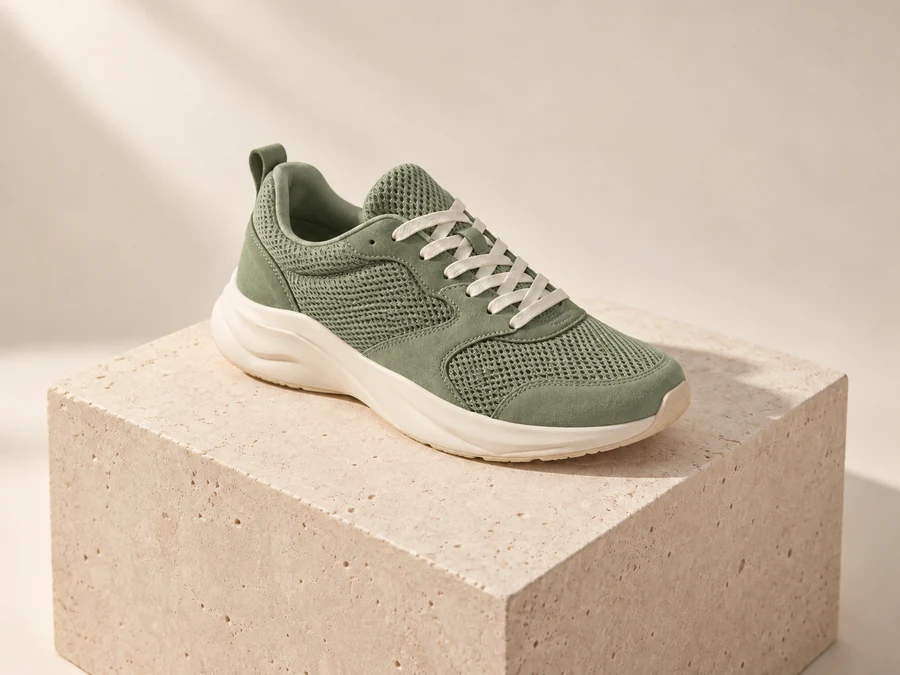
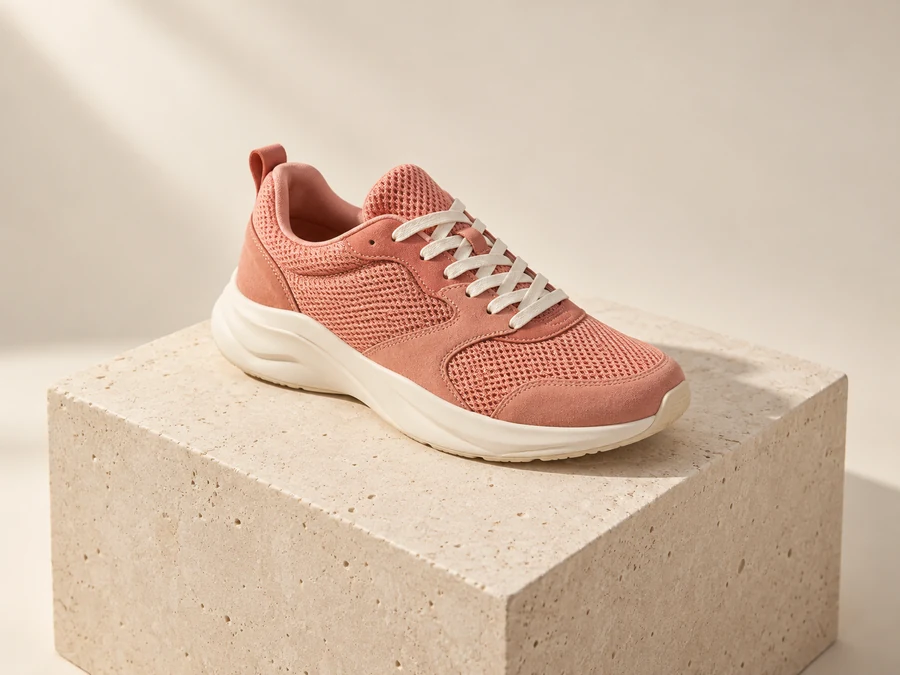 BeforeAfter
This example explains a targeted edit. It is illustrative artwork, not a verified Ideogram output or comparison benchmark.
Upload a PNG, JPG, or WebP image up to 5 MB. For a shoe color edit, review the shape, material, shadows, and background as well as the new color. The editing service is designed to preserve unaffected areas, but inspect the actual output before using it. Source proportions are preserved with automatic sizing, subject to provider limits; large images may be downscaled. This shoe comparison is illustrative artwork showing the intended workflow, not a verified model result.
Sample edit instruction
Change only the coral shoe fabric to sage green. Keep the shoe shape, knit texture, sole, pedestal, background, and lighting unchanged.
THE PROMPT PLAYBOOK
Ideogram 4.5 Prompts for Your Next Image
These Ideogram 4.5 prompts give you a starting structure for product photography, poster design, and imaginative scenes. Choose an example that matches your task, then adapt the subject, setting, colors, and wording. A detailed prompt is useful when its details support the same visual goal. Avoid adding competing styles or instructions that ask for several different compositions at once.
For a product photo, describe the object, material, surface, and light direction. For a poster, state the exact headline and explain its position and hierarchy. For a dreamscape, make the unusual setting concrete with a subject, viewpoint, and atmosphere. After generating an image, identify the most important mismatch and revise that part of the prompt. Keep a note of what changed so each attempt teaches you something about your brief.
Prompt structure
Image type + subject + setting + lighting + composition + exact text, if needed.
Product-photo example
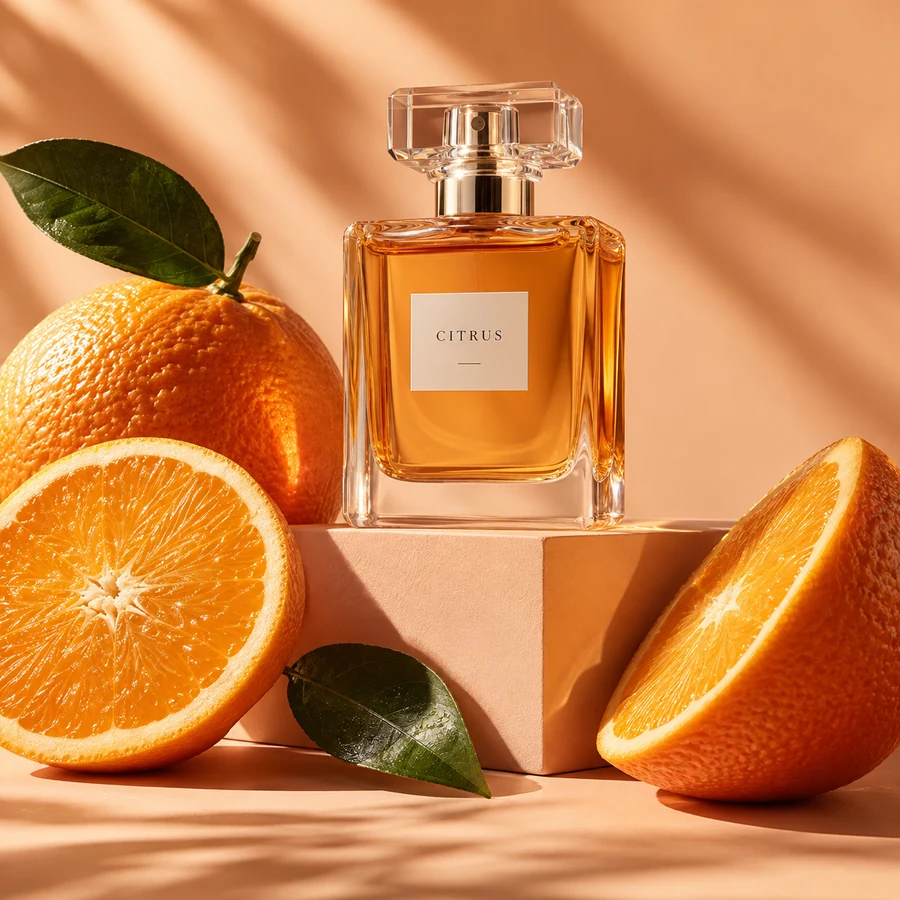
An editorial product photograph of an amber perfume bottle on pale stone, framed by orange slices. Warm side lighting, soft shadows, uncluttered background, close three-quarter view.
Poster example
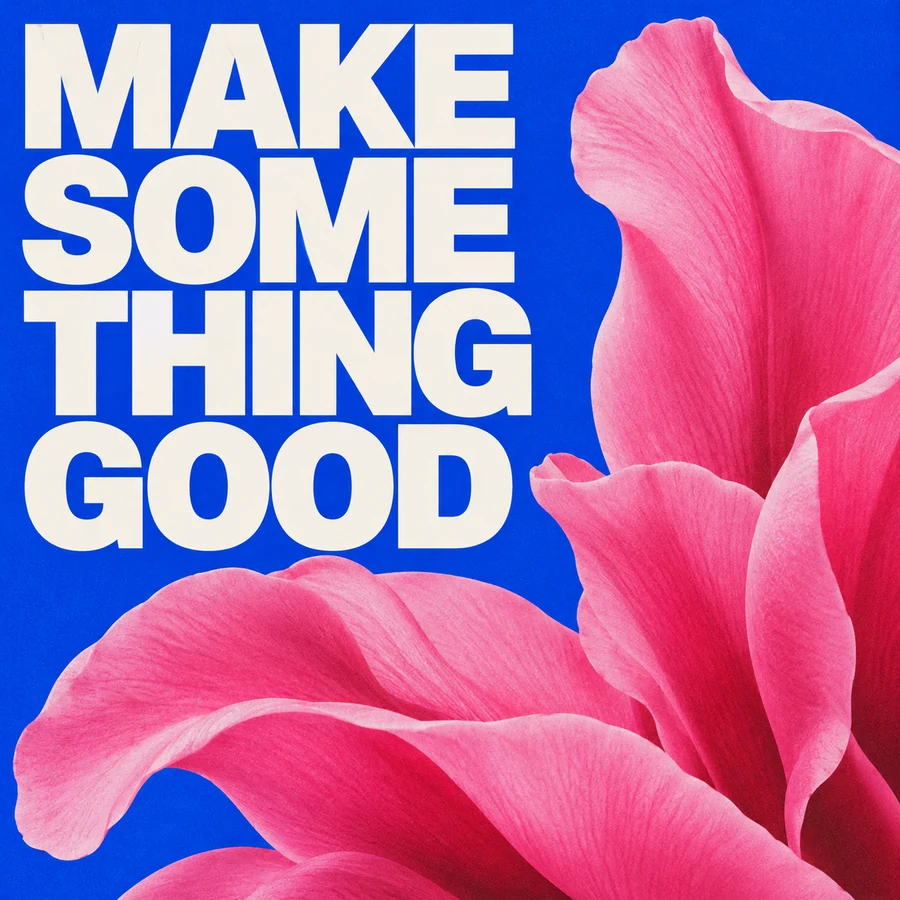
A cobalt-blue poster with the exact headline “MAKE SOMETHING GOOD” in large ivory sans-serif letters. Place the headline above pink flower petals, with generous spacing and a clear visual hierarchy.
 Try this prompt
A little liquid sunshine
Citrus, amber glass and warm afternoon light.
 Try this prompt
Make something good
A bold sans-serif headline meets oversized botanical petals.
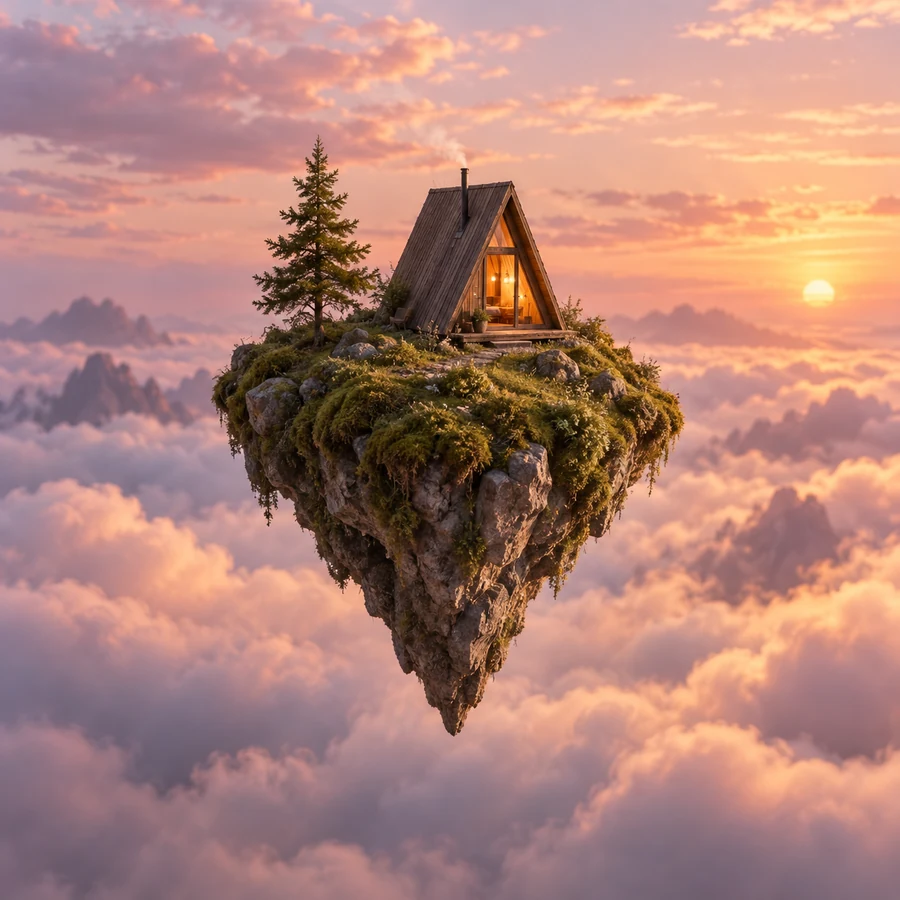 Try this prompt
Somewhere above the everyday
Ground an impossible scene in concrete details.
Example artwork is illustrative, not a model benchmark or an API result.
LESS GUESSWORK. MORE CREATING.
How to Generate, Edit, and Add Text
Start with the getting-started guide if you are turning a written brief into your first image. It walks through choosing a format, submitting a focused prompt, inspecting the output, and saving the result. The precise editing guide covers a different task: improving an existing picture without discarding the composition you already like.
For images with lettering, use the typography guide to plan short copy, text placement, and a clear hierarchy. Check every result for spelling, punctuation, and readability at its intended display size. A visually appealing draft may still need corrections before it is ready to publish. Choose the guide that matches your next step, then return to the studio with one concrete instruction to try.
4 min readYour first image, from idea to download
A practical Ideogram 4.5 workflow: write a focused prompt, choose a format, inspect the result and keep the image you want.
5 min readChange the detail. Keep the idea.
Build a disciplined editing workflow with a source image, a clear instruction and an honest before-and-after review.
5 min readGive your words a place in the picture
Write short, exact copy and a clear typographic hierarchy for posters, packaging and signs. Then proofread every result.
Image Generation and Editing FAQ
What is Ideogram 4.5?
Ideogram 4.5 is an image model for creating images from text and editing existing pictures. This independent studio brings those two workflows together with prompts and practical guides. Choose generation for a new composition or editing for a targeted change to a source image. Model capabilities and limits can change; consult the linked provider documentation for current technical details.
What do I need to generate or edit an image?
You need a signed-in account, a verified email address, and enough credits for your request. This studio currently uses 2 credits for one generated image or one edit at medium quality. You can browse the prompt library and guides without submitting a generation request. Check the balance shown in the studio before creating, and use the pricing page if you need more credits. If the generation service is temporarily unavailable, the studio displays an error so you can decide when to try again.
Are these images actual Ideogram results?
The inspiration gallery and shoe comparison are illustrative artwork prepared for this site. They explain prompt ideas and editing goals; they are not evidence of the model’s output quality. Only an image returned after your successful generation or editing request is presented as your result. Use your own output to judge how well a prompt meets your requirements.
How do I keep my generated images?
Use Open & download after a successful request, then save the image to your device. Keep the prompt and original upload with your saved result if you expect to make further edits. Saving a local copy gives you access to the accepted image independently of the current browser session or result link.